
ClarionTools
Professional Tools for the Clarion Developer . . .
Clarion Developers
Wizards are here to provide amazing features to the end user of your Clarion applications. Productivity enhancing templates super charge development for Clarion software creators.
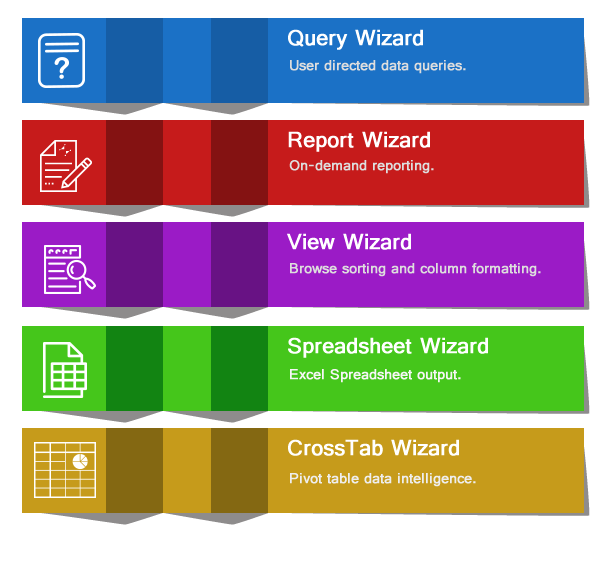
A Multi-purpose Clarion Toolkit
Wizards are a multi-purpose toolkit designed to make building useful and compelling applications easier for Clarion Developers.
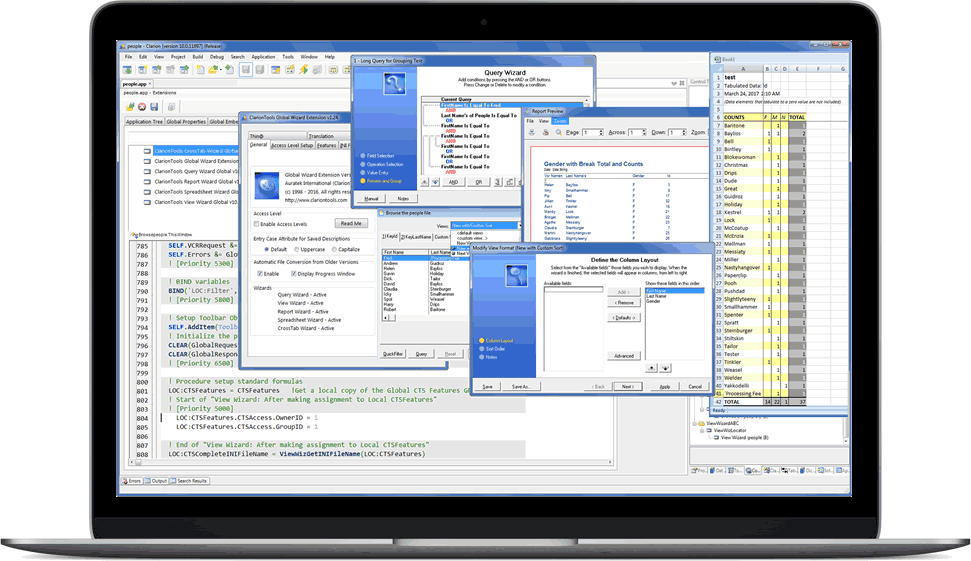
Developer Productivity
Drop in templates that integrate easily with standard Clarion browse and process procedures. Supports both ABC and Legacy template chains with powerful configuration options including context sensitive help that will lead you to the finish line in record time.
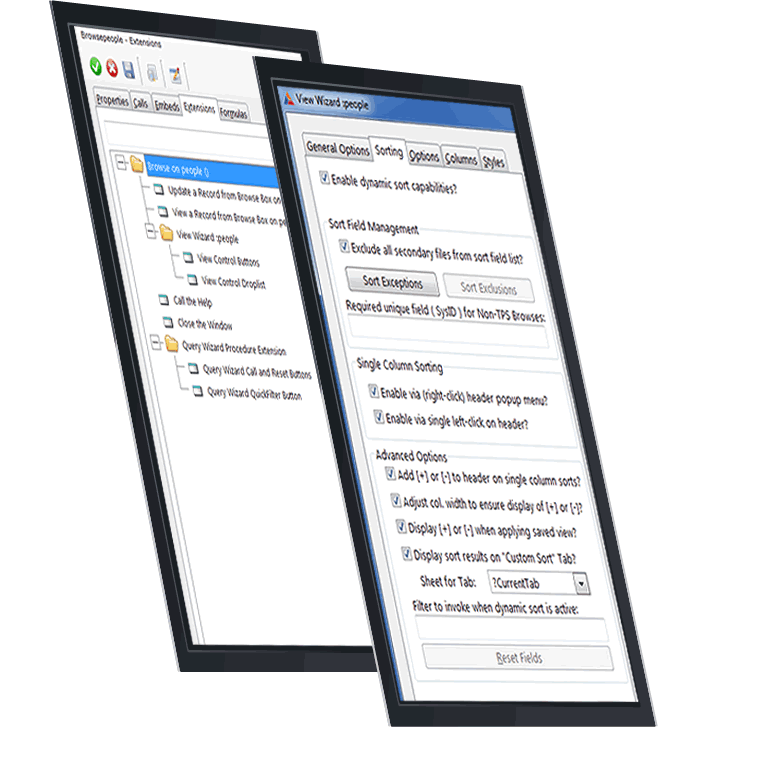

Built for User Productivity
The intuitive Wizard interface across the full product line delivers major productivity and application insight with just a few button clicks.

Easy Configuration
Developer templates provide simple drop in configuration to access a wealth of functionality for your application in just minutes all with very minimal effort.

Speaks Your Language
All Wizard text is easily translated to your locale language, in fact Croatian, Dutch, French, German, Greek, Norwegian, Polish, and Spanish are already included with a simple global template switch.

Satisfied Customers
Attract new customers and fans when you deliver features that are used in diverse and mission critical applications around the globe. The Wizards deliver solid solutions for you and your fellow Clarion developers.

Save Time & Money
Leverage significant cost savings with battle tested functionality when you deploy these products in your application at a mere fraction of the cost it would take to develop on your own.

Storage Addins
Saved definitions are stored by default in TPS files, if your application calls for alternate storage, you are covered for MSSQL, ODBC, and Btrieve options.
The Perfect Toolkit for Clarion Developers
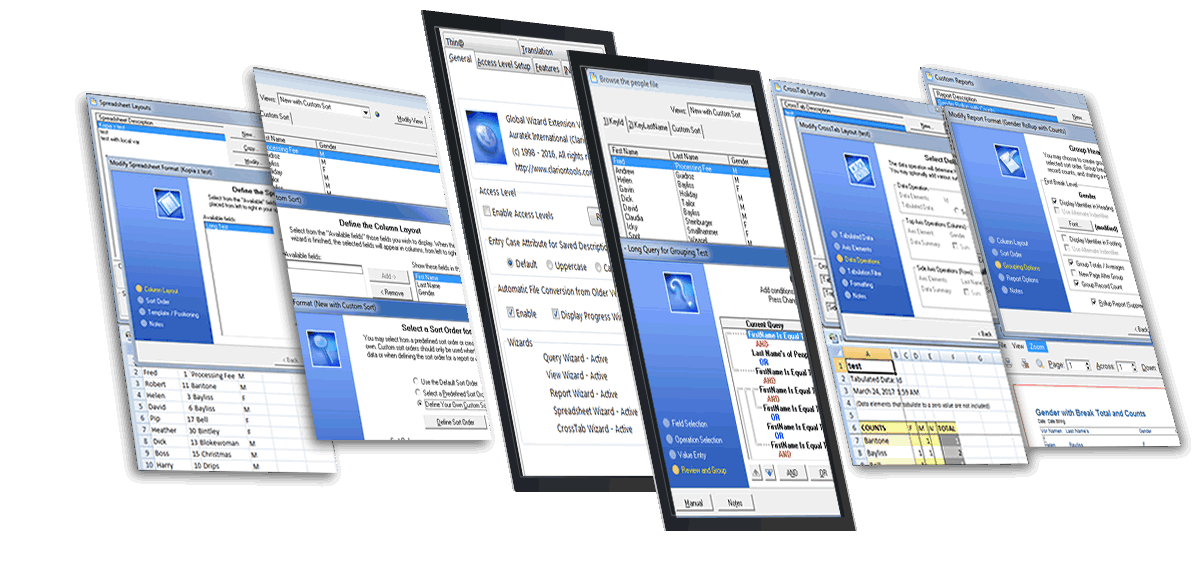
The ClarionTools Wizard product line empowers your applications and users with productivity enhancing features that you simply drop right into any standard Clarion application.
"Calling the Wizards the most useful productivity enhancing Clarion template bundle out there is an understatement. It is truly a must have for Clarion application developers."
Sean Martin

"Query Wizard is one of the main reasons we continue to use Clarion, our users just love it!"
Alex Trudeau

"CrossTab Wizard helped us replace standard Clarion reports that were taking 3 days to complete and now we get the same output and more in just seconds!"
Jennie Marquette

"The Wizards help us deliver first class applications worldwide in over 8 different languages, we just couldn't produce the same level of features without these fantastic developer tools."
Tony Baker

"View Wizard has been the only way we have found to bring column sorting to Legacy browses, with all the other features it helps us deliver great applications to our customers."
Rhonda Albert

Query, Report, View, Spreadsheet, and CrossTab Wizards are the crucial to our successful and thriving software business!
Michael Hammond